
Question

How do I automate filling a text field with the user who moved a card to "Done"?

  • December 23, 2025
  • 3 replies
  • 59 views

rafaela-passarin

I need to capture the name of the user who moves a card to "Finished" into a custom field for reporting purposes. Right now, this is only tracked in the activity history, but I need it in a standalone field to create better filters and metrics. Any recommendations on how I can achieve that?

3 replies

  • New Member
  • December 31, 2025

I need to capture the name of the user who moves a card to “Finished” into a custom field for reporting purposes to improve Wise Rank. Right now, this is only tracked in the activity history, but I need it in a standalone field to create better filters and metrics. Any recommendations on how I can achieve that with my change of role?

You’ll need automation to do this. Use a webhook or a third-party automation tool (like Zapier or Make) to detect when a card is moved to “Finished,” capture the user who performed the action, and write that user’s name into a custom field. Most built-in automations can’t dynamically store the acting user, so API-based automation is the most reliable approach.


rafaela-passarin

Thank you for the reply, Fovibo! 

I’ve tried that already through Zapier and Workato but I am having trouble capturing the user who performed the action.. apparently the info is not listed as an attribute of the card. 


Alan dOliveira
Pipefy Staff
Forum|alt.badge.img+1

Hello ​@rafaela-passarin 

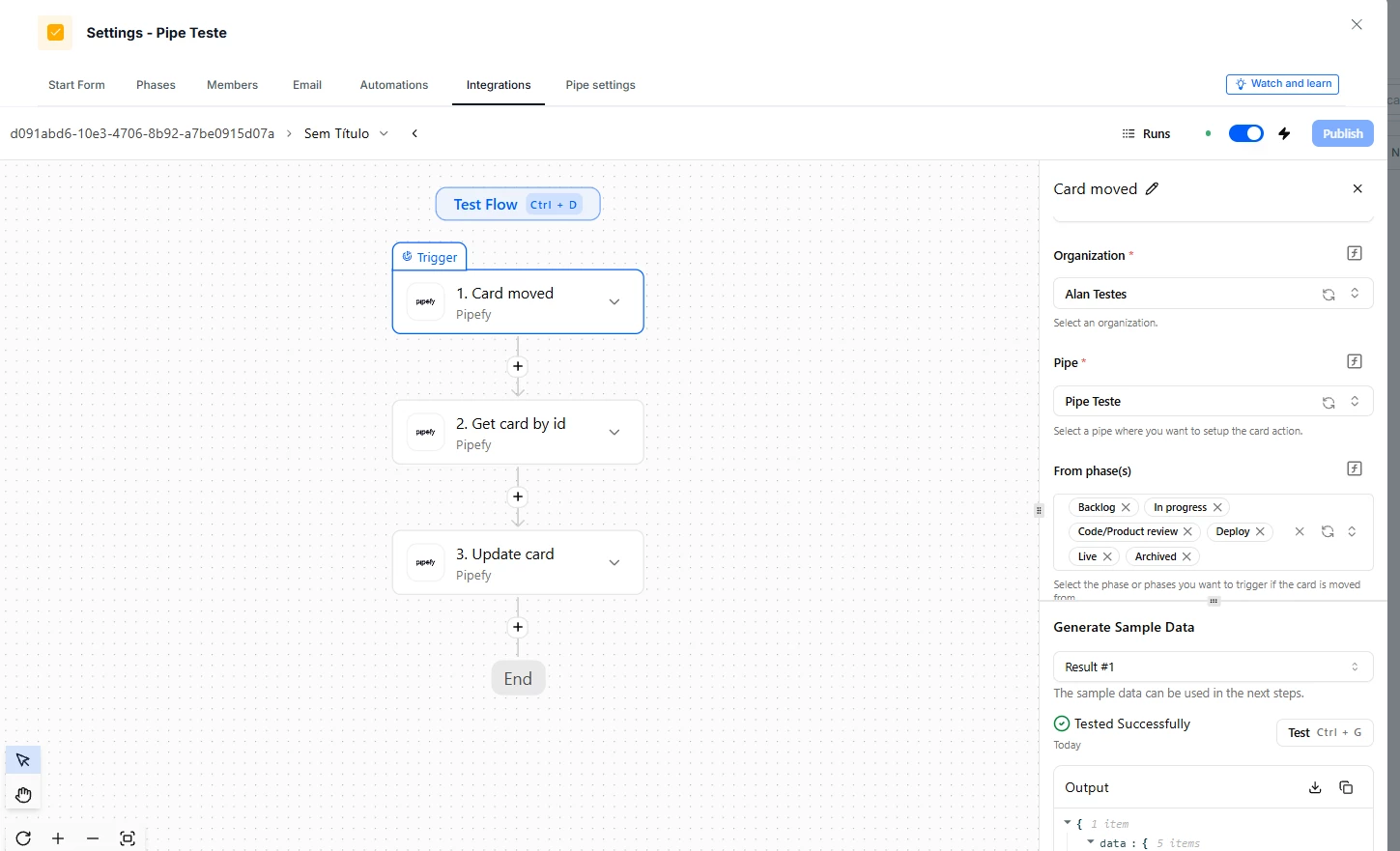
We can use IPaaS for this. Go to the "Integrate" tab and create our native integration.


1. Configure the Trigger

  • In the iPaaS (Integrations) environment, use the Pipefy connector.

  • Select the trigger event: Card moved.

  • Select your Organization and the specific Pipe you want to monitor.


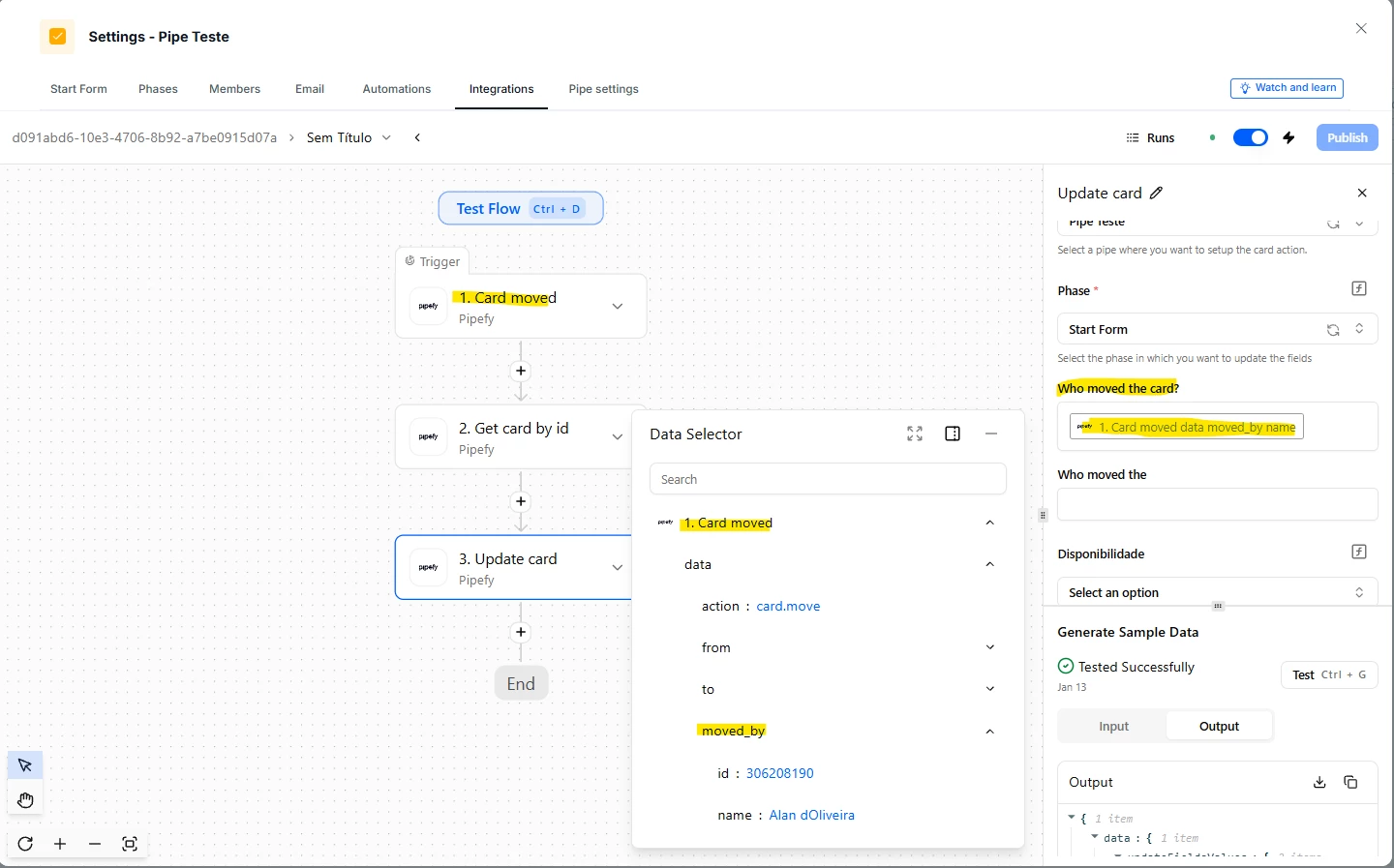
2. Access the Metadata in the Data Selector

  • When setting up your next action (such as an Update card or sending a notification), open the Data Selector.

  • Navigate to the Card moved trigger step.

  • Expand the data object.

  • Look for the moved_by object. This is where the magic happens!


3 Map the User's Information

  • Within the moved_by object, you will find the user's name, email, and id.

  • Simply drag the name variable into a text field on your card to log who performed the move.


4. Test the Automation

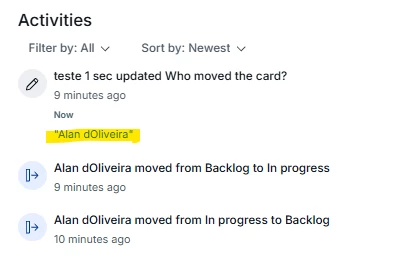
  • Move a card in your Pipe and check the Output in the iPaaS or a card.

  • The system will successfully return the name of the specific user who executed the move, which can then be recorded in any field you choose.


Let me know if you need more help!


Regards,