

Question

Import Data into Cards Already Created

  • November 18, 2025
  • 3 replies
  • 136 views

Hello, I am attempting to use the Importer App to add data into Cards that are already Created. I have two columns - A - the Card ID of the Card made and - B - the numbers I wish to be added into a field that exists in the Pipefy phases. 


Please HELP! Because I do not know if this can be done. All the resources I have read on the subject only discuss creating new cards - and I do not want to do that! [Example “wish to create cards” and “creates multiple cards” ...]

https://help.pipefy.com/en/articles/2446394-how-to-import-data-from-spreadsheets

https://help.pipefy.com/en/articles/2446675-preparing-spreadsheets-for-the-importer-app

https://help.pipefy.com/en/articles/6904523-how-to-import-data-into-a-pipe

https://developers.pipefy.com/reference/importer
 

3 replies

adrian-villegas

Hi

To perform this task via API, the resources below will help you!

The tool you’ll use for this action is https://app.pipefy.com/graphiql

Please remember that you must be logged into your Pipefy account (for authentication) and have the necessary permissions to edit cards.

For this process, you will need to obtain the Card ID and the ID of the field to be updated.

Attached, you will find a file to help you locate these items and execute the action!

Watch the step-by-step video here.

Our API documentation can be found here.

See you! 😉


Hi

To perform this task via API, the resources below will help you!

The tool you’ll use for this action is https://app.pipefy.com/graphiql

Please remember that you must be logged into your Pipefy account (for authentication) and have the necessary permissions to edit cards.

For this process, you will need to obtain the Card ID and the ID of the field to be updated.

Attached, you will find a file to help you locate these items and execute the action!

Watch the step-by-step video here.

Our API documentation can be found here.

See you! 😉

Hello, The video is unhelpful for me because of the language barrier. I did do some digging around the Pipefy Developers Website and found the following to be slightly helpful:

https://developers.pipefy.com/reference/mastering-the-documentation-your-guide-to-queries-and-mutations

https://developers.pipefy.com/reference/search-for-field-dependencies


However, I have still not found a way to EDIT a field in an existing Pipefy Card. These websites above only show me how to find information or create new cards. 


Could someone point me in the right direction on how to “mutate” information? I think that is what Pipefy calls editing a card field within a card that already exists. Also, how do I do this for 100+ Excel rows? 


aleika-alves
Pipefy Staff
  • Product Development
  • June 12, 2026

Hi! I'll explain the steps to update the values ​​of a pipe field using GraphQL and a spreadsheet to help (just transcribing the steps from the video into text).

  1. Access https://app.pipefy.com/graphiql (You need to be logged into Pipefy)
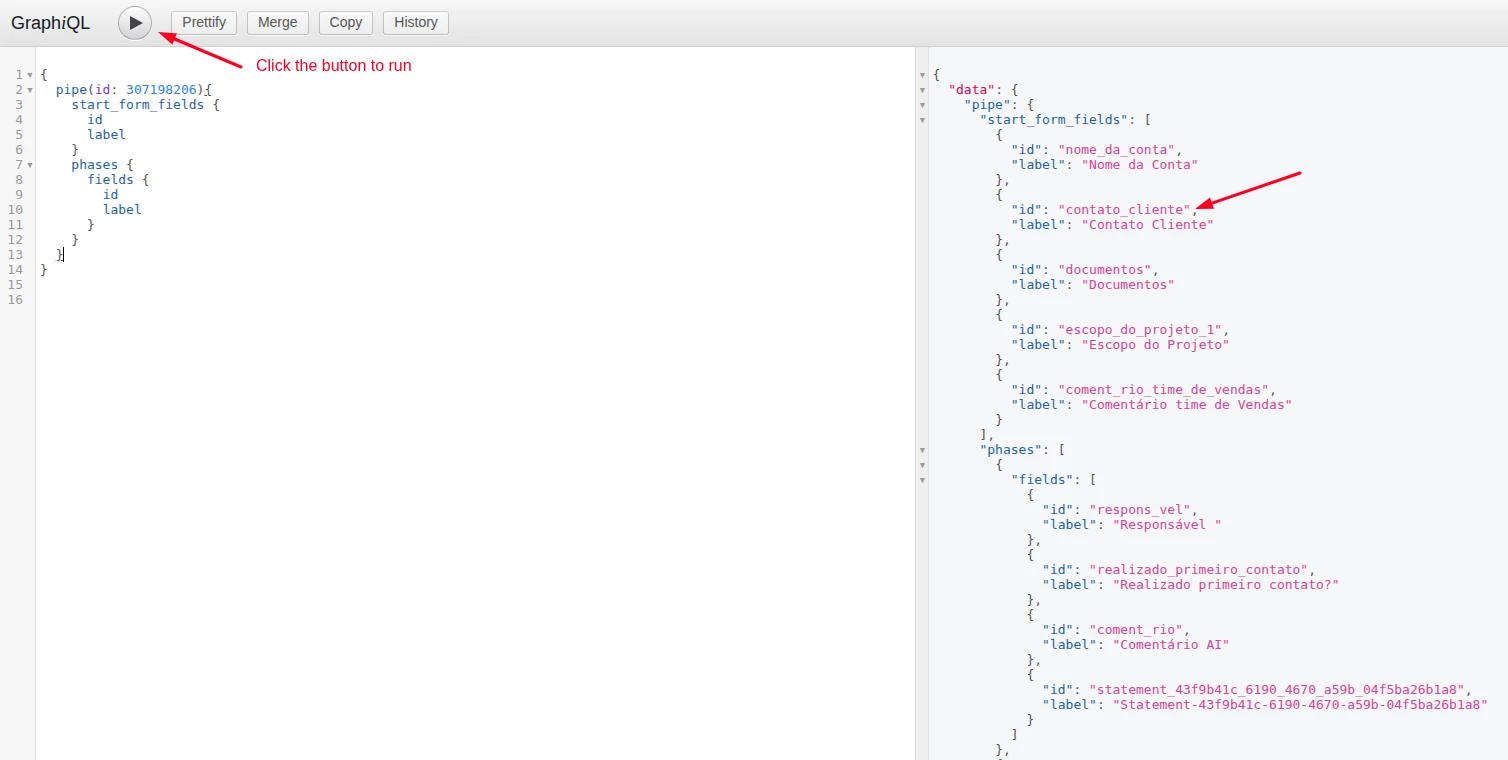
  2. Get the ID of the field that you want to update using the query:
  • {
    pipe(id: YOUR_PIPE_ID){
    start_form_fields {
    id
    label
    }
    phases {
    fields {
    id
    label
    }
    }
    }
    }

    Replace YOUR_PIPE_ID with the ID of your pipe.** 

    **Find Your Pipe ID via Pipefy UI:

          - Open the pipe in your browser.

           - The URL will include the Pipe ID: https://app.pipefy.com/pipes/307198206

           - Pipe ID = 307198206 (the number after /pipes/).

  1. You’ll get something like the image below (the arrow points to the ID of the field that I will use as an example to update the values)


  2. Use the attached spreadsheet and replace the columns corresponding to:

    - Card ID: with the ID of the cards you want to update
    - Field ID: with the ID found in the previous search (in double quotes)
    - New Value: the new value you want to assign to the fields (in double quotes)
    👉🏼 Add lines as needed and be careful to keep the last line to contain only "}" (this character complements the "mutation{" field in line 2).

  3. Copy the lines from row 2 to the last row of your spreadsheet and paste them into the https://app.pipefy.com/graphiql. You’ll have something like:

💫 After executing the mutation, your data will be updated.