




👤 For teams integrating systems that export or consume tabular data
🔐 Available for customers with the Custom Integrations add-on
🎯 Level: basic
A large share of enterprise systems still lives in CSV. Reports exported from ERPs, financial reconciliation files, vendor databases, product lists: the tabular format is everywhere because it is simple, portable, and understood by practically any tool. The problem is that APIs and integration flows speak JSON. When the two need to meet inside a flow, there is a conversion step in between.
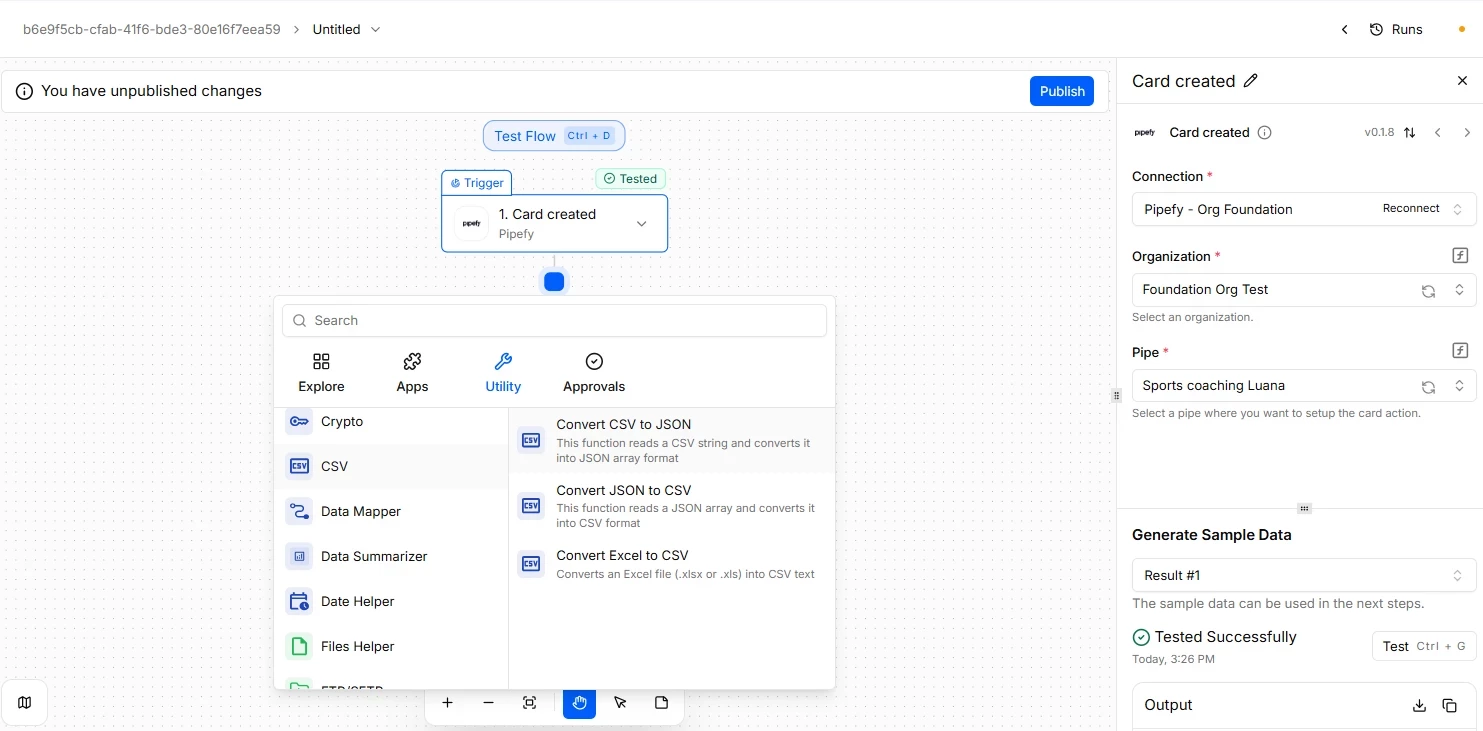
The CSV option in Pipefy Integrations solves exactly that friction point. It converts CSV to JSON so the flow can process tabular data like any other API response. It converts JSON to CSV when the final destination is a spreadsheet, a legacy system, or any tool that expects tabular data. It also converts Excel to CSV.
📖 What you will understand here:
Spreadsheet and report processing (Excel and CSV to JSON)
This is the most common path when a flow needs to interpret data coming from structured reports or spreadsheets extracted from partner systems, such as SAP data. In the Utility tab, selecting the CSV option gives you two sequential actions to handle this scenario:
- Convert Excel to CSV: If the data source is a native Excel spreadsheet in `.xlsx` or `.xls` format, this action processes the file and transforms it into plain text, a CSV string.
- Convert CSV to JSON: Next in sequence, or if the source system already sends a report directly in CSV format, this action reads the delimited text string and converts it into a JSON array format.
From that point, the data is 100% available in the Data Selector in structured form, allowing subsequent actions to apply filters, read through a For Each loop, or insert records line by line into a Pipe.
Table generation and export (JSON to CSV)
This scenario follows the inverse logic. The flow has collected data from multiple cards, consolidated API responses, or performed internal checks, and the final result needs to be returned to an external system that only accepts tabular data, such as a vendor portal or a legacy import routine.
- Convert JSON to CSV: Also found in the Utility > CSV menu, this action reads the JSON array generated dynamically throughout the flow and converts it directly into CSV text format.
With that delimited text structure ready, the flow can forward the formatted content by email, use other platform file tools to attach it back to a card as a document, or send it via HTTP request to the destination server.
The CSV option does not read or write files on its own. It converts text. The input CSV arrives as a string, typically from another step in the flow. The output CSV is also a string, which you pass to a system or action that will do something with it. Understanding this prevents confusion when building the flow.
Enterprise use case: bulk invoice reconciliation and SAP ERP deltas
In large Procurement operations, compliance data rarely arrives in pieces. Daily, the global planning system, such as SAP, generates a massive audit report containing thousands of lines of postings, billings, and vendor deltas. Because of export limitations in the legacy ERP, this file is extracted in native Excel format, `.xlsx`, a heavy binary structure that requires intelligent processing to avoid overloading the cloud.
How the flow is designed:
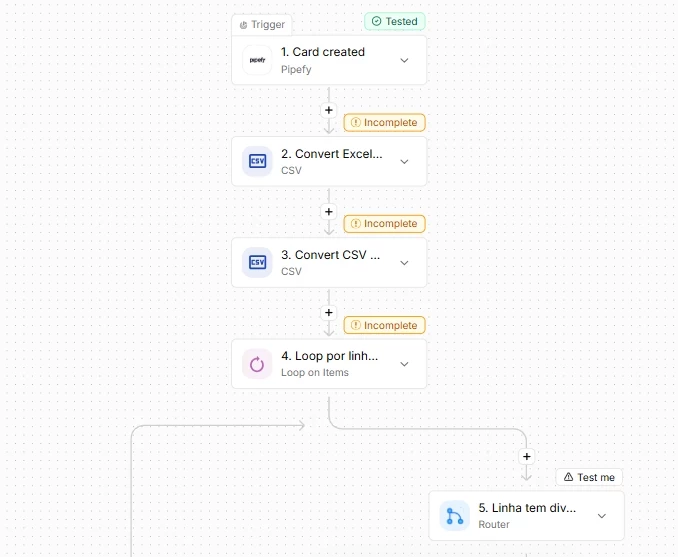
- File capture: The flow automatically collects the `.xlsx` report generated by SAP as soon as it is deposited on a secure server (SFTP) or cloud directory.
- Binary processing: Using the Convert Excel to CSV action, the platform breaks the rigid Excel structure and converts the file into plain text, a delimited string, in seconds.
- Analytical structuring: The result immediately feeds the Convert CSV to JSON action, which transforms the table rows into a JSON array of objects, fully workable for automation.
- Triage and orchestration: The flow enters a Loop (For Each) node to process the volume. An internal Router handles column triage: if a row indicates a fiscal discrepancy, Pipefy isolates the record and opens an urgent audit card in the Accounts Payable Pipe.
Best practices for high-performance flows
To ensure that this bulk processing runs safely and efficiently, the flow should be hardened following Pipefy product best practice guides to prevent infrastructure overflows:
- Memory management (protection against out-of-memory): Converting massive spreadsheets into JSON objects consumes a lot of volatile memory. Because the environment has a hard limit of 512 MB per execution, best practice requires filtering unnecessary columns at the source or cleaning the payload before converting it to JSON, ensuring only essential data travels through the flow's memory.
- Chunking strategy (sub-flows / callables): Processing a linear loop with thousands of records in a single main flow will inevitably exceed the maximum processing execution time. The high-performance architecture recommendation is to use the main flow only to break the file (as an orchestrator) and, from inside the loop, fire asynchronous child flows, callables, in chunks to process blocks of rows in parallel.
- Avoid unnecessary nodes inside the loop: Every action executed consumes CPU time and API calls. Placing repetitive lookups, such as Get Card or redundant HTTP requests, inside a loop of a thousand rows degrades flow performance. The correct approach is to extract those queries outside the loop, perform a single fetch of supporting data at the start, and use local memory for cross-referencing.
- Idempotency in card creation: If a network fluctuation interrupts processing at row 800 of a 1,000-item report, the flow will be re-executed. To avoid creating duplicate cards in Pipefy during reprocessing, include a unique ERP key, such as the invoice number, in a control field and perform a quick lookup before deciding to create a new card.
Two things to check before going to production
Nested objects do not survive CSV conversion cleanly. When the input JSON contains objects inside objects, the action flattens the structure by using the parent object key as a header prefix. The result may be functional, but the table structure will differ from what most tools expect. If the source JSON has hierarchy, it is worth normalizing the data before passing it through the CSV conversion, using the Code option or a transformation Files Helper.
Special characters in text data can break CSV interpretation. Commas inside an address field, quotation marks in trade names, line breaks in description fields: all of these can misalign columns if the delimiter is not configured correctly or if values are not quoted in the source CSV. Test the flow with real data before going to production, especially when the source is a system you do not control.
Very large CSVs processed entirely by the CSV option can impact flow performance and task consumption. If the file has thousands of rows, consider splitting the processing into batches, or evaluate whether the source system can pre-filter the data before sending it.
Before moving on, confirm that you understand:
☐ The difference between CSV to JSON and JSON and Excel to CSV, and when each direction applies
☐ Why the CSV action works with strings, not files
☐ What happens to nested JSON objects when converting to CSV
☐ Why testing with real data is mandatory when the source contains free-text fields
