



Why do emails fail in Pipefy — and how to prevent it
Sending emails is one of the most used features in Pipefy. Whether for automated notifications, status updates or customer interactions, automated messages are a vital touchpoint. However, many customers still experience failures without understanding the cause. Why? Misaligned expectations about sending limits and lack of clarity on how SMTP server integration works.
📖 This article explains the main causes of email failure, what is Pipefy’s responsibility (and what isn’t), and best practices to ensure successful delivery.
What are the email sending limits in Pipefy and what happens when they’re exceeded
Pipefy’s native email infrastructure has programmatic sending limits to prevent abuse and protect domain reputation.
These limits vary based on the organization’s age:
-
Organizations under 7 days old: Pipefy monitors email activity over the last 24 hours. If 100+ unique emails are rejected by recipient servers (status “not received”), the organization’s email sending is temporarily blocked.
-
Organizations with 7+ days: The block applies if 2,000+ unique emails are rejected in the last 24 hours.
The block is automatic and preventive, based on rejection behavior. It resets after a period, but may impact critical automations like approvals, notifications and alerts. Manual unblock via support is not possible.
Tips to avoid being blocked:Reduza envios em massa ou repetitivos sem segmentação.
- Reduce unsegmented bulk or repetitive email sending
- Use conditional logic to send emails only when necessary
- Rethink whether every automated notification is truly essential
- See also our best email practices guide
Important: If your organization is blocked due to high rejection rates and you configure a custom SMTP afterward, emails will be sent using that server automatically. No support intervention is needed.
Is it worth configuring a custom SMTP? Benefits and cautions
Yes — especially for companies seeking greater control and professionalism in their communications
Benefits of using your own SMTP:
- Brand identity: Emails are sent from your company’s domain
- Security: Encrypted connection with modern authentication (OAuth 2.0)
- Deliverability control: You manage your sender reputation
- Higher sending volume: Limited only by your provider (Outlook, Gmail, etc.)
- IT alignment: Integrates with firewalls, compliance rules and internal logs
After configuring a custom SMTP, you must update your templates and automations to ensure the new email is used as the sender. The connection alone does not update flows automatically.
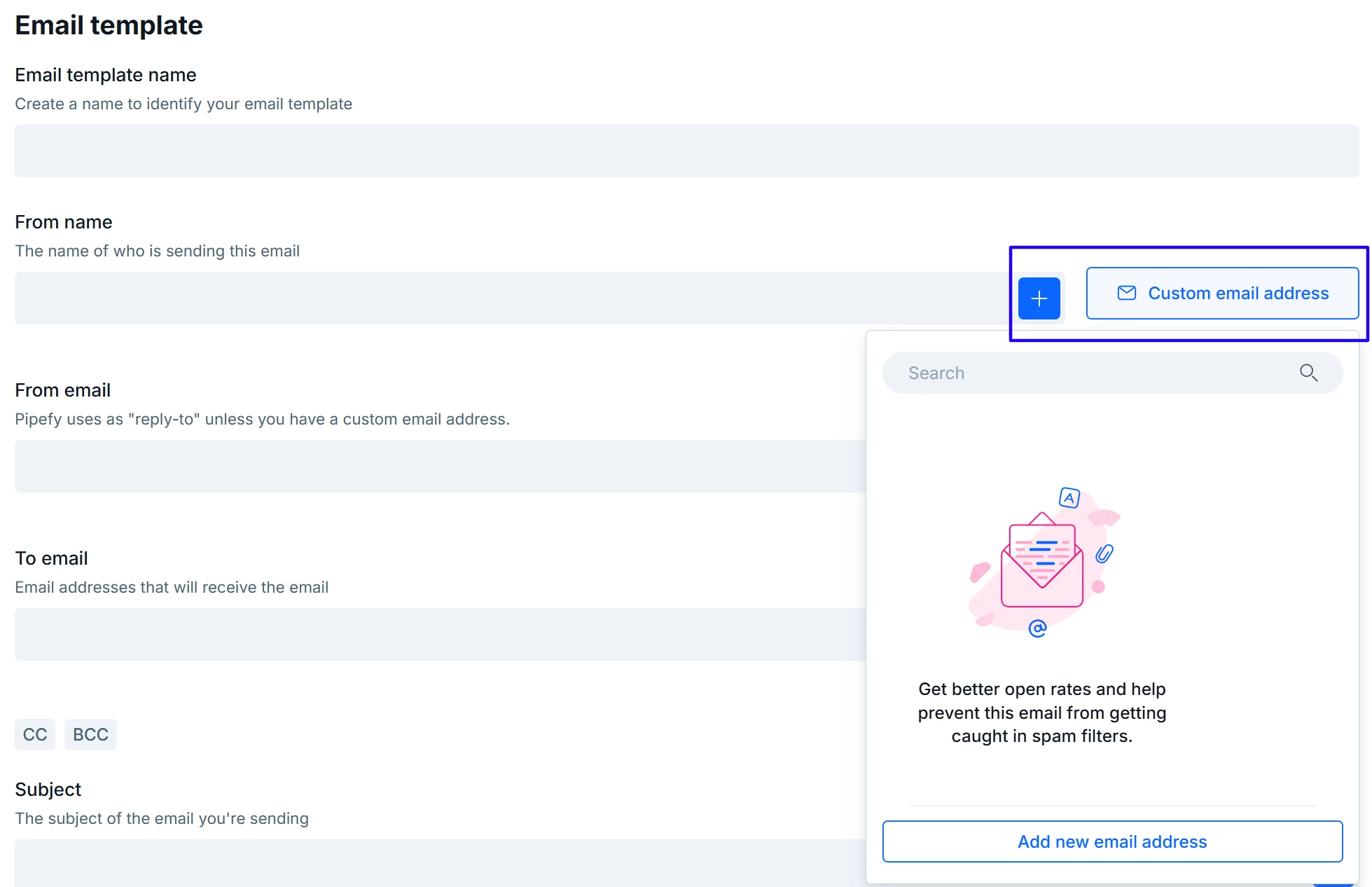
When using your own SMTP, Pipefy only triggers the request. The actual sending depends on your SMTP server. If delivery fails, the issue is usually on the SMTP side.
Emails sent via SMTP are still subject to sender identity and reputation validations, including SPF, DKIM and DMARC. If your domain isn’t properly configured, your messages may fail or be flagged as spam.
- For detailed instructions, check: How to set up a custom email address via SMTP.
Analogy: Think of Pipefy “knocking on the door” of your SMTP server. If the door doesn’t open, the email isn’t sent. It’s up to your server (Outlook, Gmail, SendGrid, etc.) to open it.
- For detailed instructions, check: complete guide to SMTP configuration
How to ensure your SMTP server is accepting connections from Pipefy
Common issues when setting up a custom SMTP:
- Firewall blocking Pipefy’s connection
- Incorrect port
- Incorrect username (e.g., display name ≠ actual email address)
- Authentication or permission denied by provider rules
Checklist for your IT team:
- Is the SMTP server open to external connections?
- Is the correct port used (typically 587 for TLS)?
- Has OAuth 2.0 authentication been approved?
- Are there spam filters or quotas blocking the emails?
- Learn more in our SMTP setup guide.
Required Outlook change: Ending Basic Auth and switching to OAuth 2.0
Microsoft will end support for Basic Authentication (username/password) for SMTP in September 2025.
If your organization uses smtp.office365.com or smtp-mail.outlook.com, you must migrate to OAuth 2.0 authentication
How to migrate:
- Go to Email Settings in Pipefy’s admin panel
- Click Connect with Microsoft
- Log in with your corporate Microsoft account
- Authorize the connection
- Set the sender name and email
- (Optional) Link a pipe for automatic card creation
- Click Save — and you’re all set
- The secure connection with your Microsoft SMTP server is now active.
Tips to avoid email delivery failures or blocks
- Avoid redundant email automations
- Don’t trigger emails at every transition
- Use SMTP if your email volume is high
- Test delivery with your IT team
- Monitor logs and metrics to ensure success
- Use our SMTP setup guide if needed
Note for clients with @yahoo.com recipients: If using Pipefy’s native infrastructure, ask those recipients to add Pipefy’s domains and IPs to their allowlist to avoid rejections.
When to contact Pipefy Support — and when to escalate to your IT team
| Scenario | Contact Pipefy | Contact IT |
| Automation execution error | ✅ | |
| SMTP connection refused | ✅ | |
| Email sent but not delivered | ✅ | |
| Duplicate messages | ✅ | |
| Questions about limits | ✅ | |
| Sender rejected by SMTP server | ✅ |
How to avoid frustration with email delivery in Pipefy
Pipefy’s email feature is powerful — when used with technical clarity. Understanding what the platform controls and what the SMTP server controls is essential to avoid delays or failures.
If you handle large volumes of communication, use a custom SMTP. And if you're on Outlook, migrate to OAuth 2.0 as soon as possible.
FAQ
Does Pipefy send unlimited emails?
No. The native infrastructure has organization-level limits to prevent abuse. If exceeded, sending is temporarily blocked.
My automation triggered an email, but it didn’t arrive. Whose responsibility is it?
If using your own SMTP and the automation ran successfully, the issue is likely with the SMTP server.
How do I know if my SMTP is set up correctly?
Test the connection in the email settings and confirm with your IT team that Pipefy is authorized and the port is open.
Do I really need to migrate to OAuth 2.0 on Outlook?
Yes. Microsoft will block Basic Auth SMTP connections starting in September 2025.
What can I do to avoid being blocked for high volume?
Avoid unnecessary automations, use logic conditions and monitor sending volume.
I configured SMTP, but emails still come from mail.pipefy.com. Why?
You need to update your templates and automations to use the new custom sender.
Does setting up SMTP unblock sending if I was already blocked?
Yes. If your organization is blocked and you configure a custom SMTP afterward, Pipefy will send emails using it — no support needed.
I have many recipients with Yahoo emails. What should I do?
Ask them to add Pipefy’s domains and IPs to their allowlist to prevent delivery issues due to external reputation filters.
